
From 72 Days to 33 Hours: Uploading 87 Million Files to Cloudflare R2
Usually, what you expect when building a data-intensive project is storage challenges. But usually those challenges are about how to store gigabytes or terabytes of data, and the problem rarely arises from the number of files.
While working on our latest project, Safia, hosting the 87 million small .pbf files extracted from OpenStreetMap represented to us a big challenge than expected.
Check out our article "Map tiles from OpenStreetMap to PBF" to discover how we extracted those tiles from OpenStreetMap.
Here is the story of how, after breaking our server, we ditched our initial plan and decided to use Cloudflare R2 (S3 compatible). Transferring millions of files in a timely way is not simple, we will take a look into three transfer tools that we tested to upload those tiles to Cloudflare R2.
The Inode Trap
Initially, our plan was simple: serve the static tiles using Nginx. It's effective, works for everyone else and we had enought space on our Proxmox Hypervisor, right?
We configured the server and started generating the tiles. Everything looked great until we started to see write errors. We checked the disk, we still had enough storage left. But the system refused to write any new single file, all our attempts kept failing.
It turned out we had just hit the Inode limit. We only had a little more than 54 million, which was way less than what we needed. There exist way to change and configure that, but this is when we realized that managing a file system to hold that many files would become a maintenance nightmare.
So we decided to move to Object Storage.
Why We Chose Cloudflare R2
First, we started to look into the usual suspect: AWS S3 and Google Cloud Storage. These two are good products and represent the industry standard. During our research, we started to look into pricing, and more we looked into less their pricing model raised concern on our part. Our concern was caused by the egress fees, this would represent a huge budget for a map tile service that is expected to serve high traffic public data.
We ended settling on Cloudflare R2. We couldn't ignore the value proposition they provide for our use case:
- No egress fees: We could serve the tiles to users without having to pay for the bandwidth, and they provide a cdn that was perfect for us.
- S3 compatibility: This compatibility meant we could use standard S3 tools to interact with the S3 API despite the limited implementation.
- Pricing: We expect it to be cheaper in the long run than the main stream solutions.
- Class A Operations (Mutate/Write): $4.50 / million.
- Class B Operations (Read): $0.36 / million.
- Free Tier: And the cherry on the cake, we got 1 million Class A and 10 million Class B operations per month for free.
With the destination decided, we still had one more thing to do, upload the map tiles to the storage.
But how do you move 87 million files efficiently?
The Transfer Tool Showdown
It's easy when the job consists of transferring a limited number of large files. But transferring millions of small files is a stress test for local machine and the network.
We then went to the rabbit hole of finding a way to achieve that. We tested three different tools, starting by the AWS CLI the obvious one, followed by Rclone and s5cmd.
Now let take time to present all of them. The goal here is not to provide a tutorial on how to use them, but to help you avoid having to spend days trying to figure out which one is the best for a given use case.
The Standard: AWS CLI
Since R2 is S3-compatible and works out of the box, in our mind, it was the tool to use.
So we installed it on our machine.
The code bellows illustrates how it can be used.
export AWS_ACCESS_KEY_ID=<your_r2_access_key>
export AWS_SECRET_ACCESS_KEY=<your_r2_secret_key>
export AWS_DEFAULT_REGION=auto

aws s3 cp /path/to/tiles/ s3://<bucket-name>/ --recursive --endpoint-url https://<account-id>.r2.cloudflarestorage.com
This tool was too slow and not efficient at all.
We started the upload and an hour later we realized we had only uploaded 50K files.
By doing a simple math, we realized it could take 1740 hours which represent more than 72 days. That was just not acceptable, without hesitation, we started to look for a tool that could do a better job.
Then we find out that there existed another tool that we could use, it's Rclone.
The Swiss Army Knife: Rclone
Rclone is perfectly fit for syncing data with the cloud. It's written in go which generally provide better concurrency performance than Python (the language in which aws cli is written in). So we decided to give it a try.
It's simple to use too. Once the configuration of the rclone.conf with R2 details is done, the process consist of running a command similar to the following:
# --transfers=64 this parameter increases parallel uploads (default is 4)
# --fast-list minimizes memory usage by batching directory retrieval
rclone copy /path/to/folder/ r2:<bucket-name> --transfers 64 --progress
Rclone was faster than AWS CLI. But we considered it limited for our use case, it spent a lot of time walking the directory tree. Indeed, it scans files and checks if checksum/size is different before uploading. This was tunable, but we didn't have time to look for the right parameter to increase the number of uploads per hour.
We notice an improvement by using Rclone. We went from 50K files per hour to 600K. Meaning the transfer would take only 145 hours (more than 6 days), this was still too much for us.
So we decided to look for a better alternative. That's when we found s5cmd.
The Flash: s5cmd
When we read about this tool, we didn't believe it was possible.
On the developer repo, it is presented as being able to saturate a 40Gbps link (~4.3 GB/s).
So we decided to give it a try.
We were amazed by the result.
In our test, we were able, the first hour, to hit 2.6M files transferred.
This was game changer, meaning it would only take 33 hours it was still more than a day,
but compared to 72 days or 6, this number was acceptable to us.
To transfer content of the /path/to/folder prefixed by <prefix> on R2 bucket <bucket-name> with account id <account-id>, this is the command we used:
$ENDPOINT_URL=https://<account-id>.r2.cloudflarestorage.com
$S3_PROFILE=r2

s5cmd --profile $S3_PROFILE --endpoint-url $ENDPOINT_URL cp \
    --content-type application/x-protobuf --content-encoding gzip \
     --cache-control "public, max-age=31536000, immutable" \
     "/path/to/folder/" \
     "s3://<bucket-name>/<prefix>/"
By using this command, we were able to hit a pic of +4.5M files transferred per hour as illustrated in the following cloudflare usage graph.
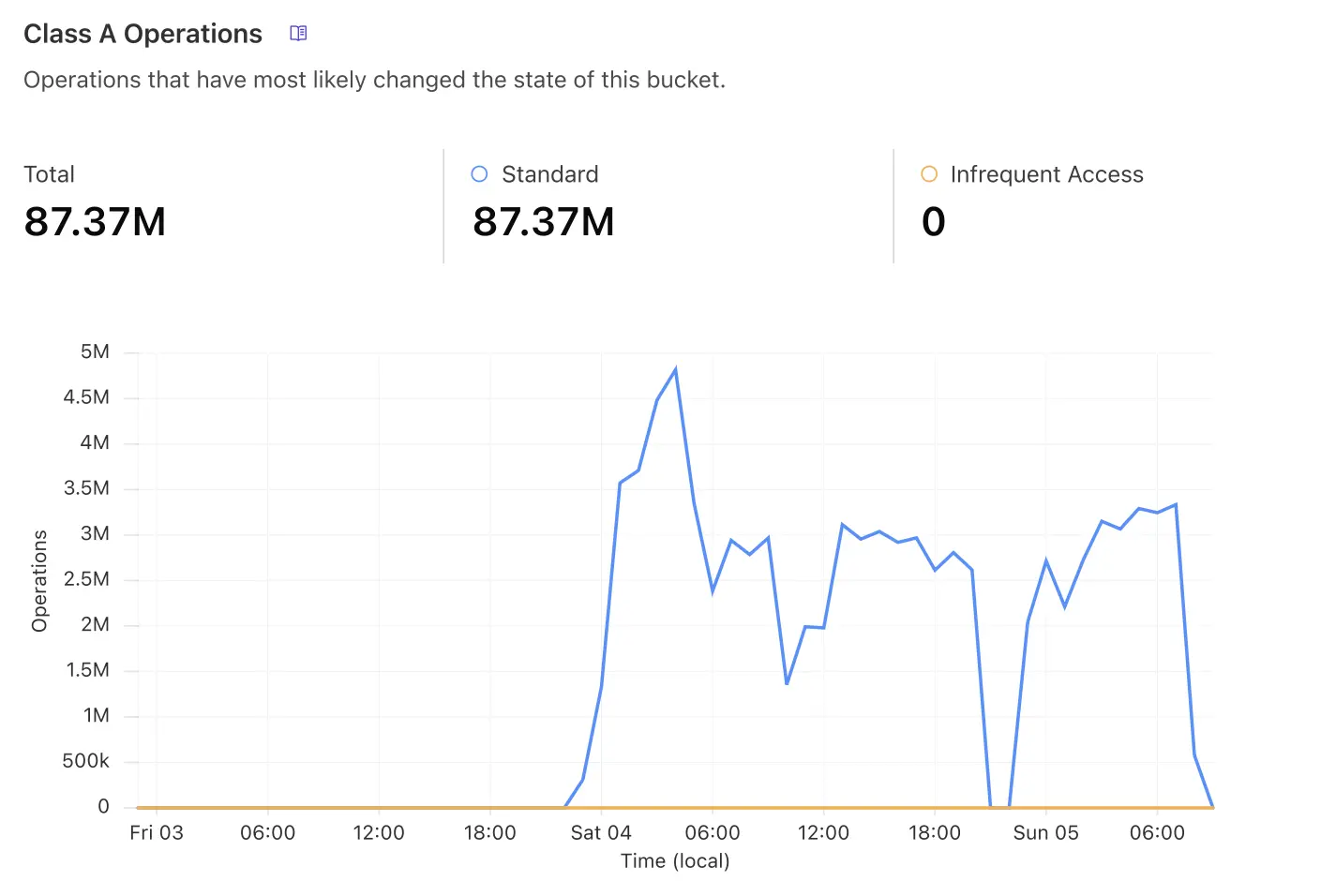
In this graph, we have to account the tiles extraction time. Indeed, as we couldn't extract the planet at once (due to the inode limitation), we were extracting region by region, transferring the tiles, then removing them from the machine and so on.
Conclusion
If your use case is to move large ISOs or video files, any of these tools will perfectly work. But, when facing millions of small files, s5cmd is your best friend. It saved us days of transfer time and helped us to get Safia up and running in record time.
If you are facing a similar use case, reach out, and we will be happy to help you save time in your project.